Architecture Design Guide
Learn how to design cloud architectures using CloudCanvas drag-and-drop interface and canvas tools
ℹ️Prerequisites
Before designing architectures, make sure you have already created a project to organize your work.
Create New Architecture
From the dashboard, click "Design Architecture" to start creating a new cloud architecture.
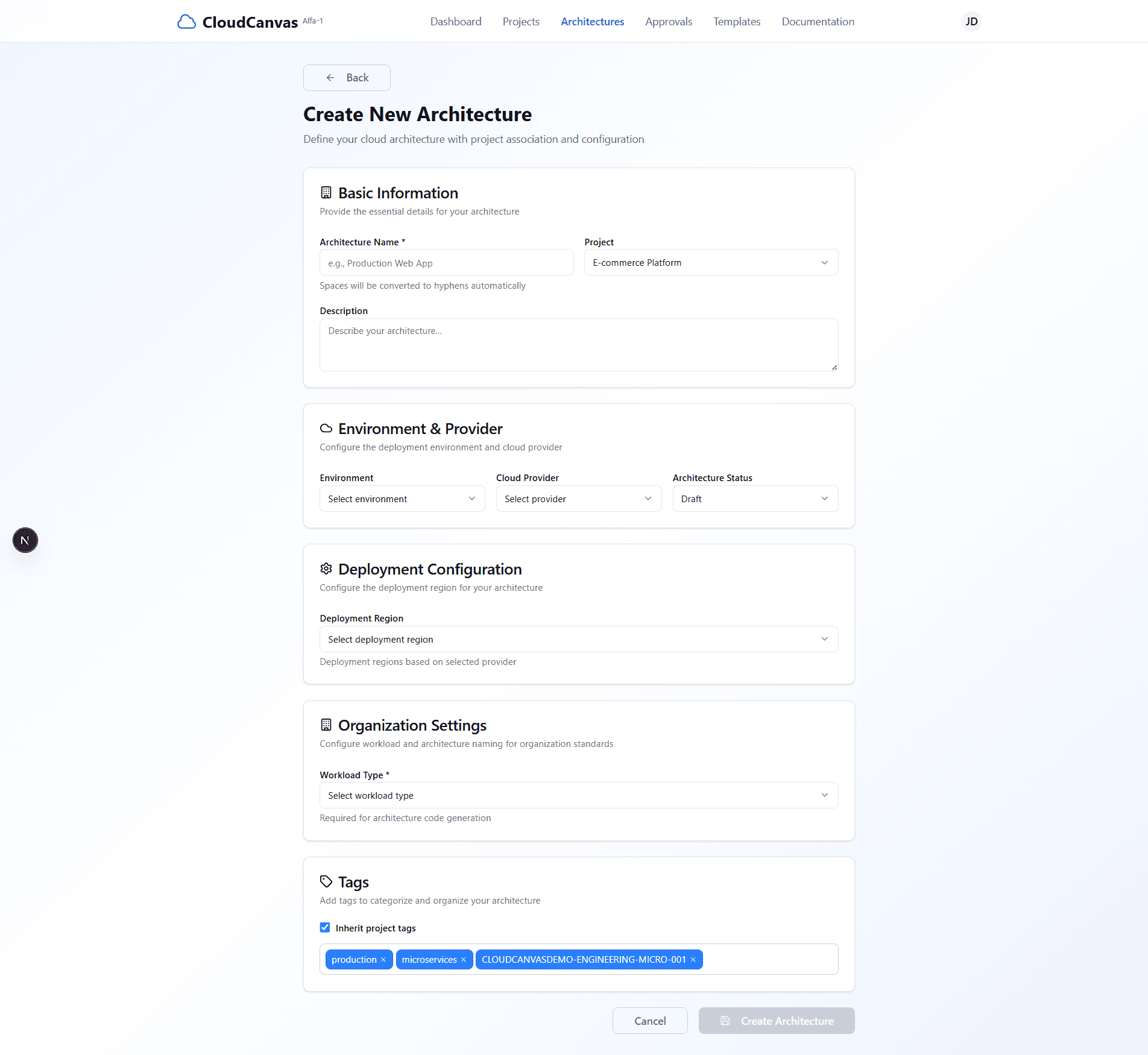
Architecture creation form with project selection
Configure Architecture Details
Fill out the architecture configuration form with the following details:
- Architecture Name: Enter a descriptive name (e.g., "E-commerce Production Architecture")
- Project: Select the project created in the previous step
- Environment: Choose "Development" for testing environments
- Cloud Provider: Select "AWS" for Amazon Web Services
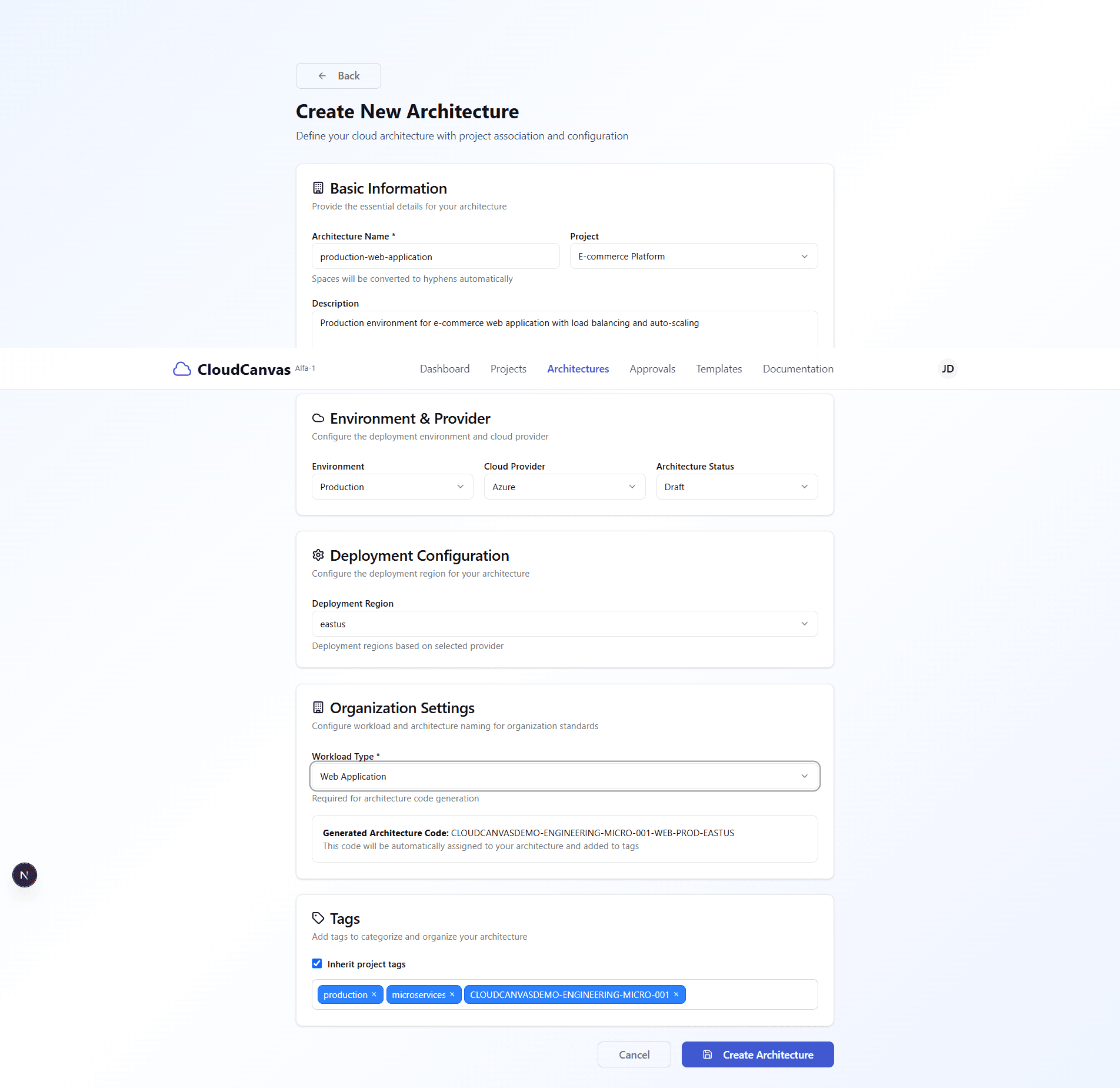
Architecture form with all details configured
Open Designer Interface
After creating the architecture, you'll be redirected to the CloudCanvas designer interface with the canvas and tools.
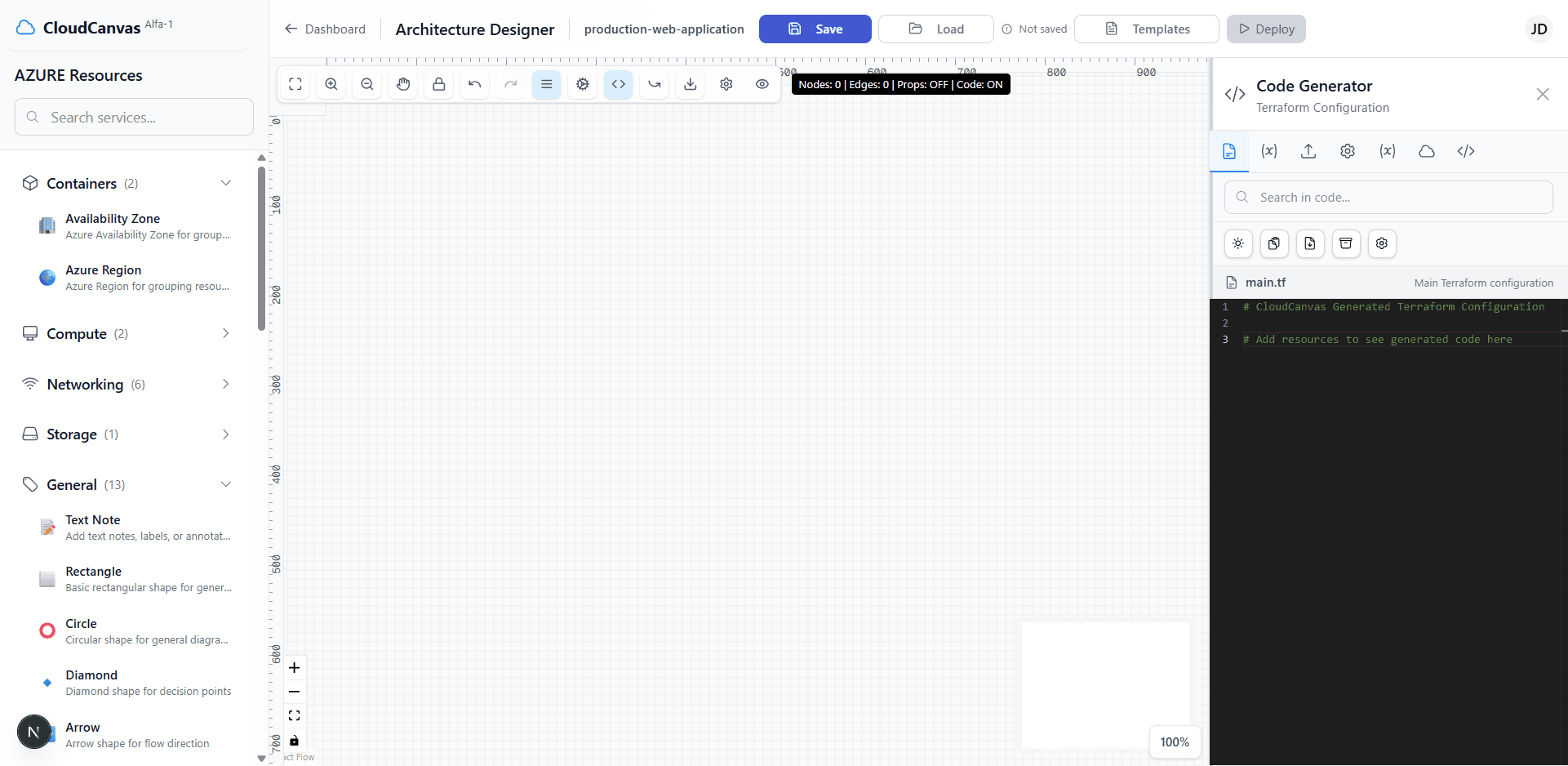
Main designer interface with canvas and sidebar
Design Network Topology
Use the networking section to design your cloud architecture:
- Click on "Networking" in the left sidebar to access network components
- Drag and drop "Virtual Private Cloud" to the canvas
- Drag and drop "Public Subnet" to the canvas
- Position components as needed for your architecture
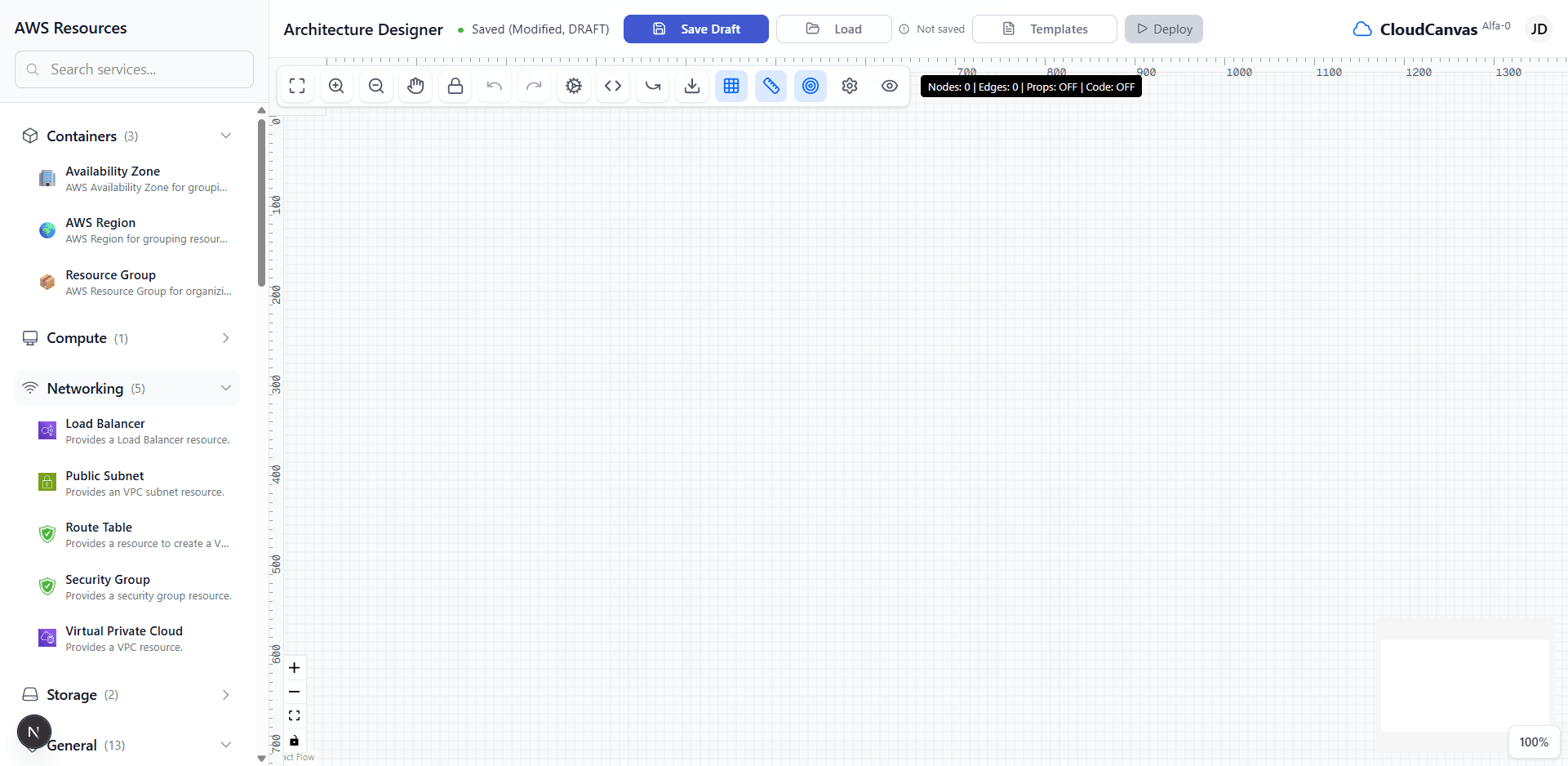
Networking section with available components
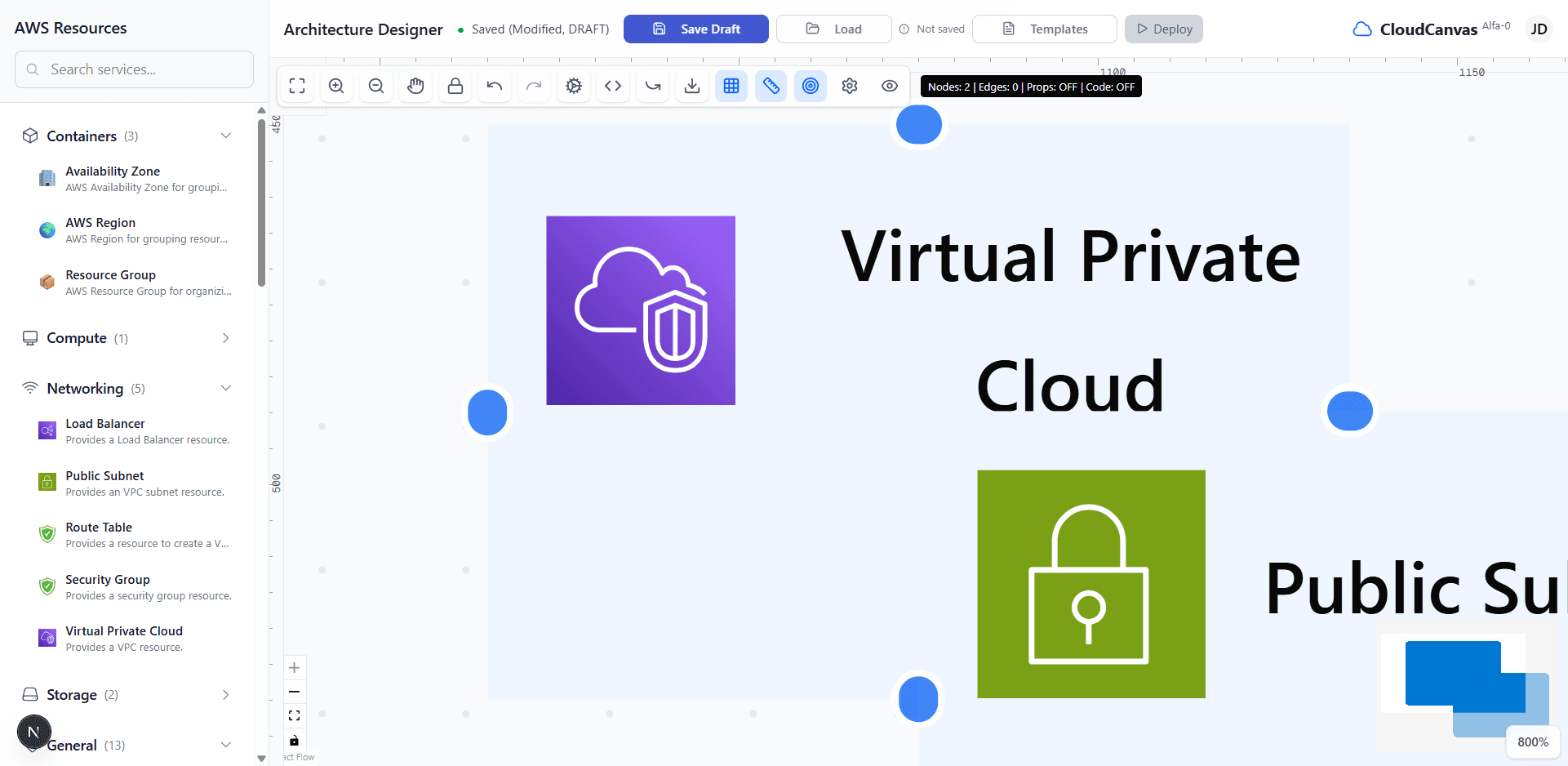
Canvas with VPC and subnet components placed
Use Canvas Tools
Explore the powerful canvas tools available in the designer:
- Properties Panel: Click the properties icon to view and edit component properties
- Save Draft: Use the save button to save your work periodically
- Zoom Controls: Use zoom in/out and fit view for better navigation
- Grid & Rulers: Toggle grid and rulers for precise alignment
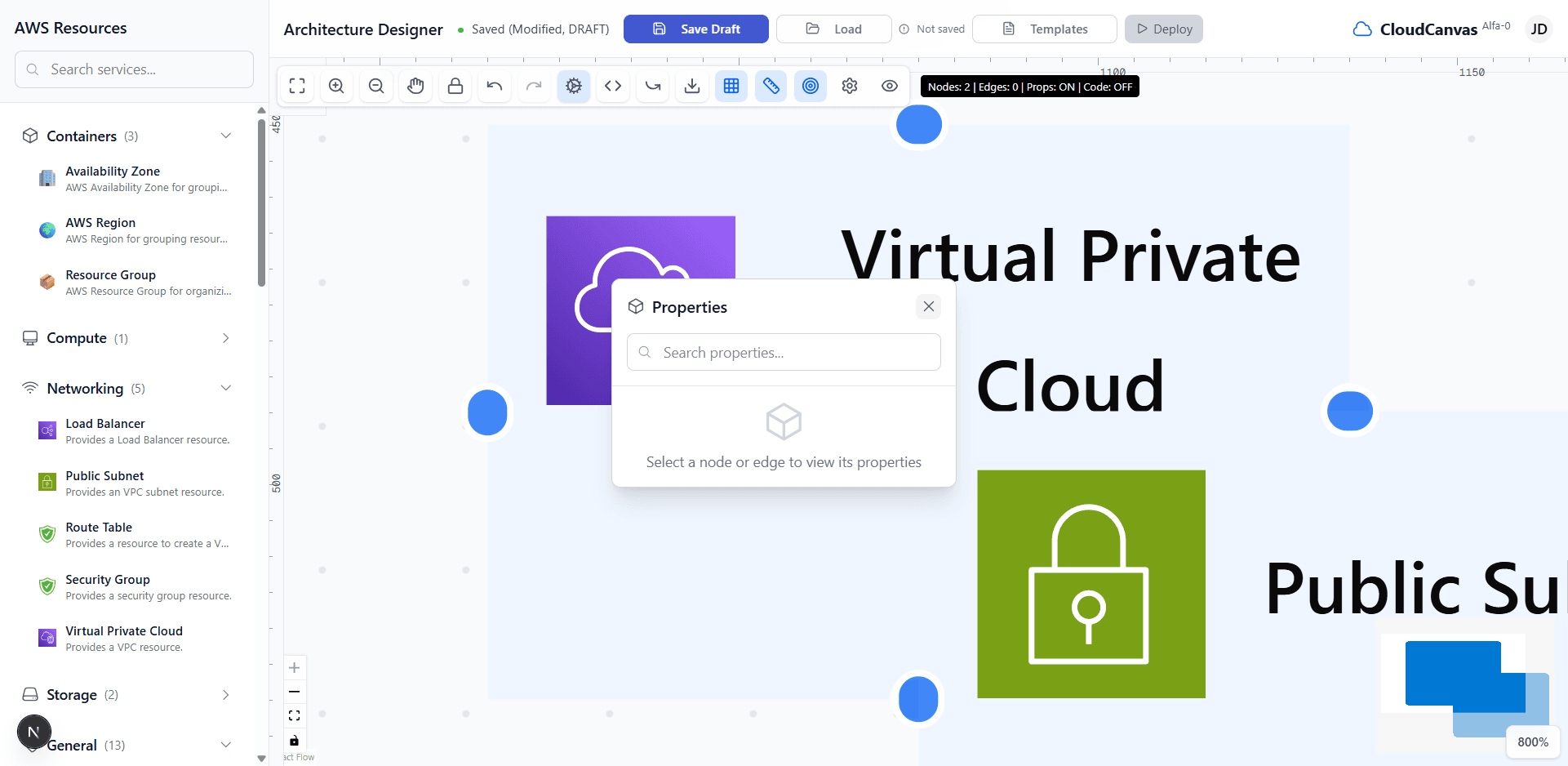
Properties panel showing component details
Save Your Architecture
Save your architecture design to preserve your work and enable further editing.
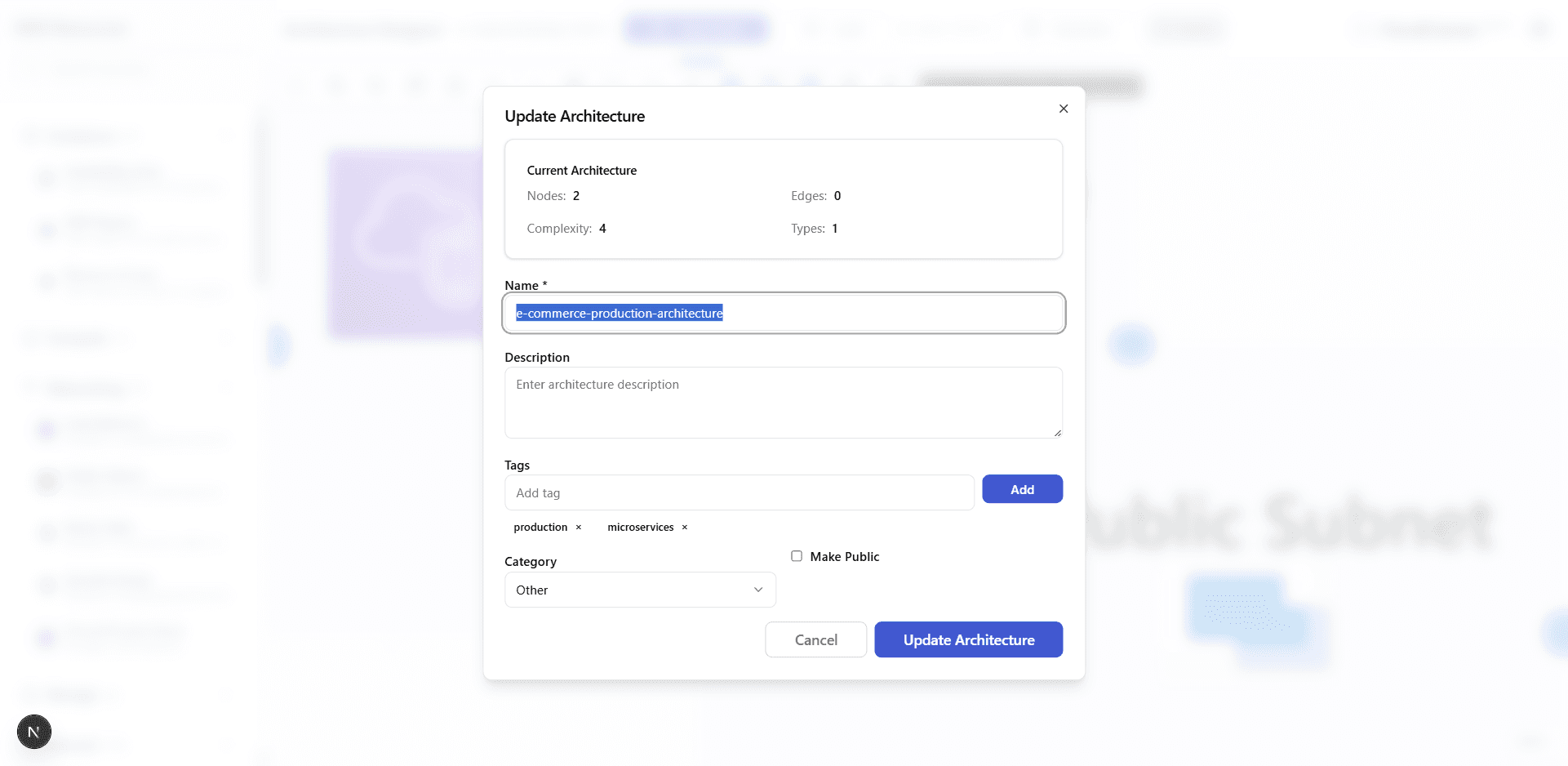
Save dialog with architecture details and statistics
Canvas Toolbar Reference
Navigation Tools
- • Fit View: Adjust view to fit all components
- • Zoom In/Out: Control zoom level
- • Move Mode: Enable/disable component movement
- • Lock Canvas: Prevent accidental changes
Editing Tools
- • Undo/Redo: History navigation
- • Properties Panel: Show/hide component properties
- • Code Panel: Show/hide generated code
- • Reset Panels: Reset panel positions
Display Tools
- • Toggle Grid: Show/hide alignment grid
- • Toggle Rulers: Show/hide measurement rulers
- • Smart Snapping: Enable/disable smart alignment
- • Download PNG: Export canvas as image
Advanced Tools
- • Canvas Settings: Configure canvas options
- • Node View Options: Control component display
- • Save Draft: Save current work
- • Load: Load saved versions
Designer Features
Drag & Drop Interface
Intuitive drag-and-drop functionality for placing cloud components on the canvas.
Real-time Code Generation
Automatic Terraform code generation as you design your architecture.
Multi-selection Support
Select and manipulate multiple components simultaneously for efficient design.
Auto-save Functionality
Automatic saving of your work to prevent data loss during design sessions.
🚀 What's Next?
Now that you've designed your architecture, you can set up repository integration for automated deployment!